How to Download Movies from CloudStream for Offline Viewing
When you use the CloudStream app to watch your favorite movies, the process is very simple and user-friendly. First, choose the movie you would like to watch from the home screen or by using the search option. Once you tap on the title, you will see two main choices on the screen – Play Now and Download.
If you want to enjoy the movie right away, simply click on Play Now, and the movie will start streaming instantly on your device. But if you would rather save the movie for later, especially when you don’t have internet access, then you can click on the Download button.
When you select the Download option, the app will show you three useful controls – Play File, Delete File, and Pause Download. These options let you manage your download while it is in progress. For example, you can pause the download if your internet connection slows down, resume it later, or even delete the file if you no longer want it.
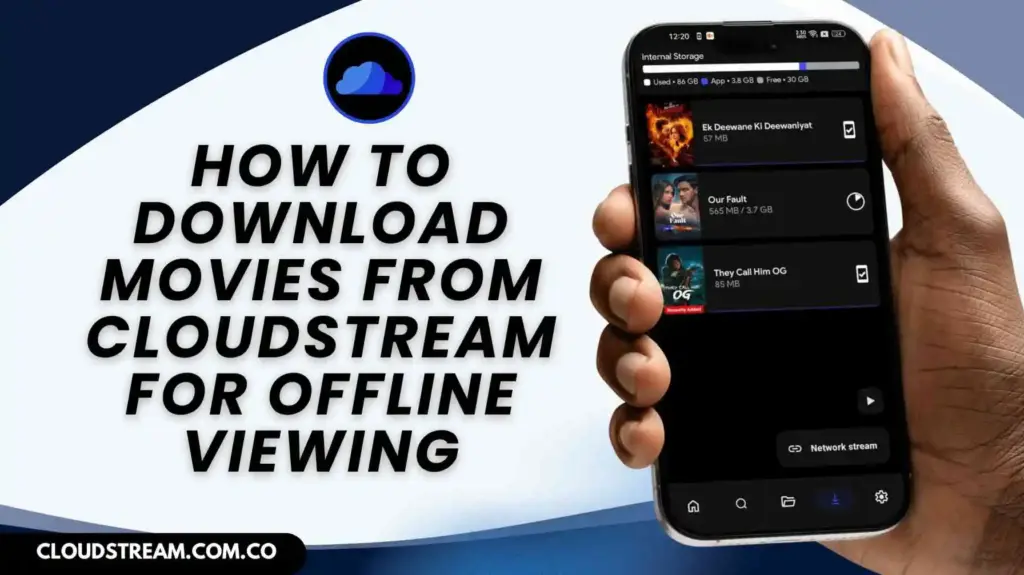
To track your downloads, go to the Download icon at the bottom of the navigation bar. There, you will see all the videos you are downloading. Wait until the download is fully complete before trying to play the file.
Once your video has successfully downloaded, it will stay saved in the app, and you can watch it at any time you want – whether you are offline, traveling, or simply relaxing without internet. This makes CloudStream not only a streaming app but also a convenient tool for building your own offline library of movies and shows.
Steps to Download Movies or Series on CloudStream
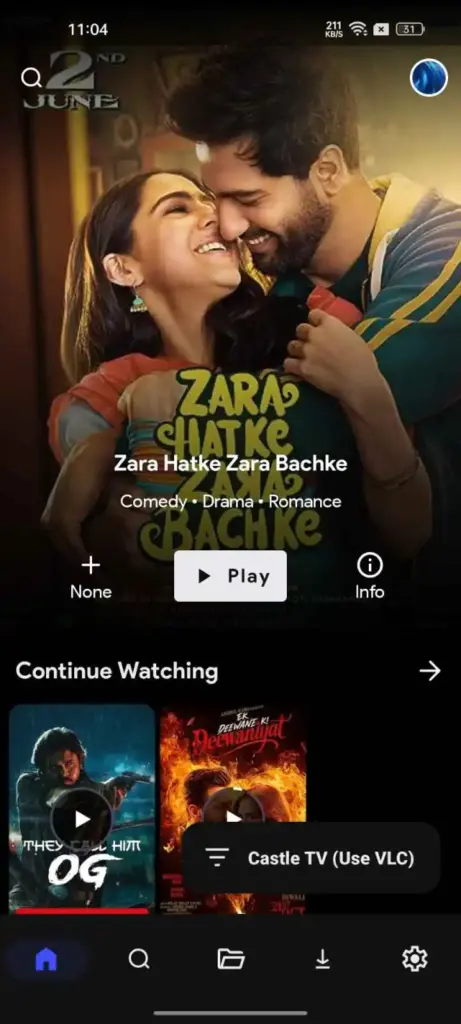
Step 1. Open the CloudStream App: Start by launching the CloudStream app on your device. Make sure you have already installed the app and it is updated to the latest version.
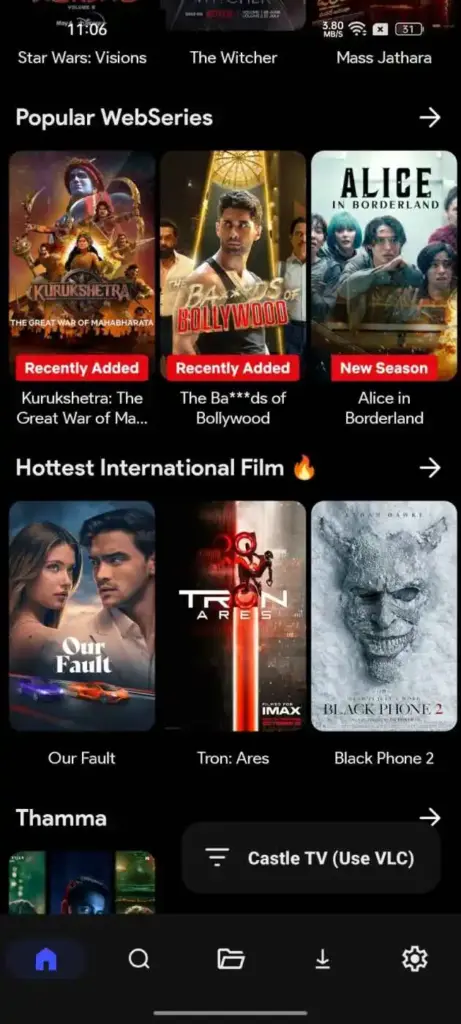
Step 2 . Search for Your Favorite Content: Use the search bar or browse through categories to find the movie or series you want to download for offline viewing.
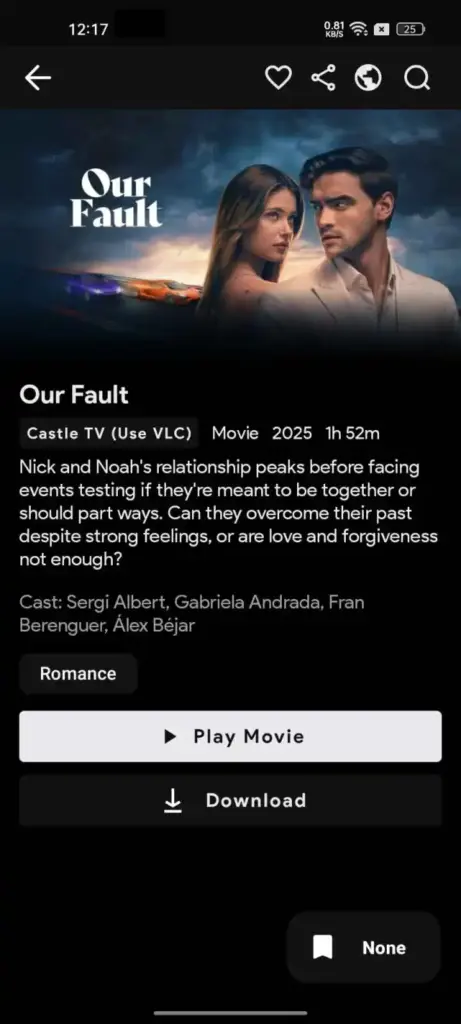
Step 3. Choose the Movie or Episode: Tap on the title of the movie or select the specific episode of the series you want to save. Once selected, you will see two buttons – Play Now and Download.
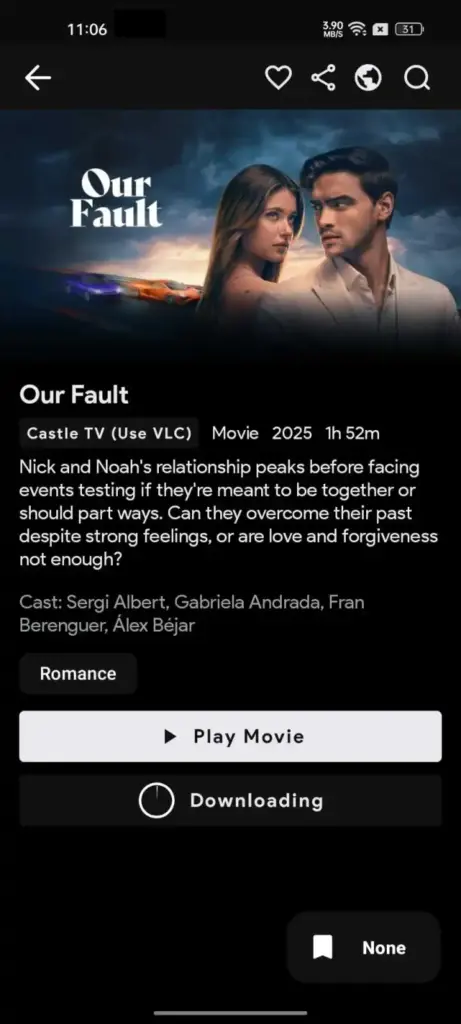
Step 4. Tap on the Download Button: Click on the Download button if you want to watch the content later. The app will then start preparing the file for download.
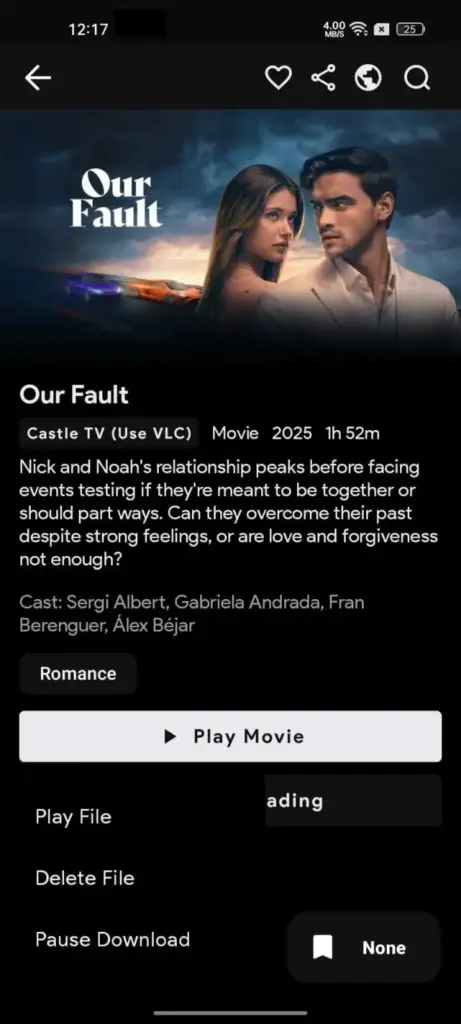
Step 5. Manage Your Downloads: After tapping download, you will get options like Pause Download, Play File, or Delete File. These controls let you manage the file while it is downloading.
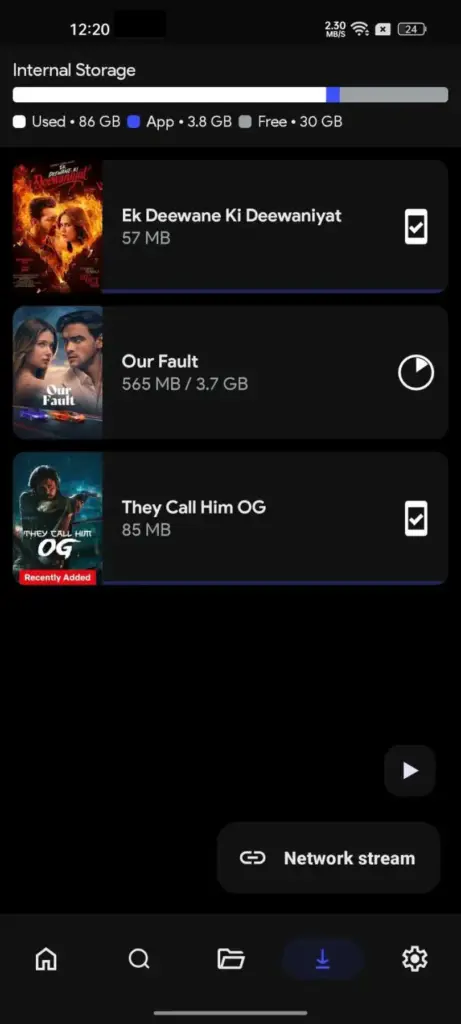
Step 6. Check Downloads from the Navigation Bar: Go to the download icon located at the bottom of the app screen. Here, you can track the progress of your downloads and ensure they are completed.
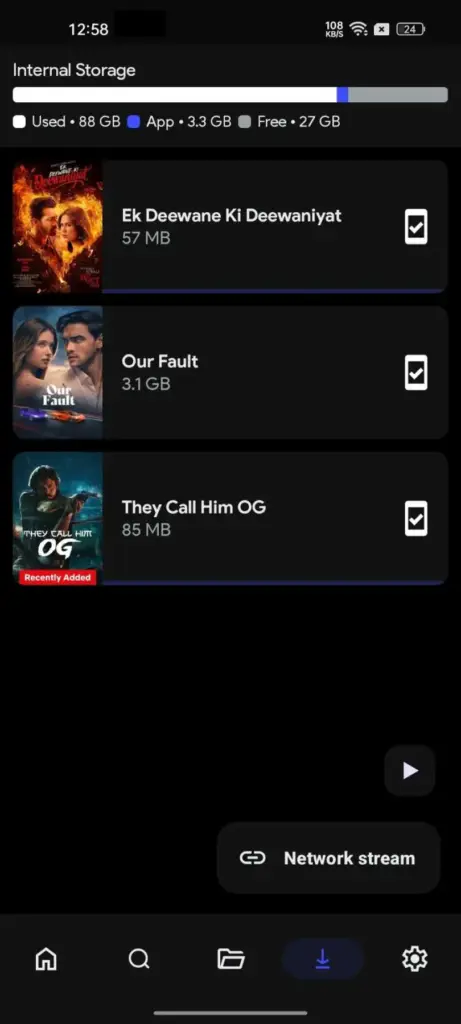
Step 7. Watch Offline Anytime: Once the download is finished, the video will be stored inside the app. You can now watch it later, even without an internet connection.
Why Downloading on CloudStream is Useful
- No Internet Needed: Perfect for flights, train rides, or places with poor connection.
- Unlimited Offline Library: Save as many movies and episodes as your device storage allows.
- High-Quality Options: Download in different resolutions to match your preference and storage capacity.
- Easy to Manage: Pause, resume, or delete downloads anytime with just a tap.
Conclusion
CloudStream makes offline watching simple and convenient by giving users full control over downloads. Instead of depending on internet speed or worrying about buffering, you can download your favorite movies and series in advance. This way, whether you are traveling or just want to save data, CloudStream ensures entertainment is always available at your fingertips.