CloudStream For Smart TV/Android TV Download (Free)
CloudStream is your ultimate media player application for Smart TV that brings together content from all the popular OTT platforms to serve you exclusive OTT series, anime titles, and the latest regional/international movies from all around the world. It is a media player tool that comes with the ability to install extensions that could extract from from third party streming and torrent sources to deliver thousands of content on your home feed.
Since OTT series have reached the pockets of common individuals. It now feels like a waste of money to spend on premium apps when you can get them all for free with CloudStream for Smart TV. It comes with a premium-like user interface that provides multilingual subtitle support and a built-in search functionality. With its ability to install multiple extensions, you can actually source content from multiple servers and find the one that is offering the best possible video quality with a faster streaming experience.
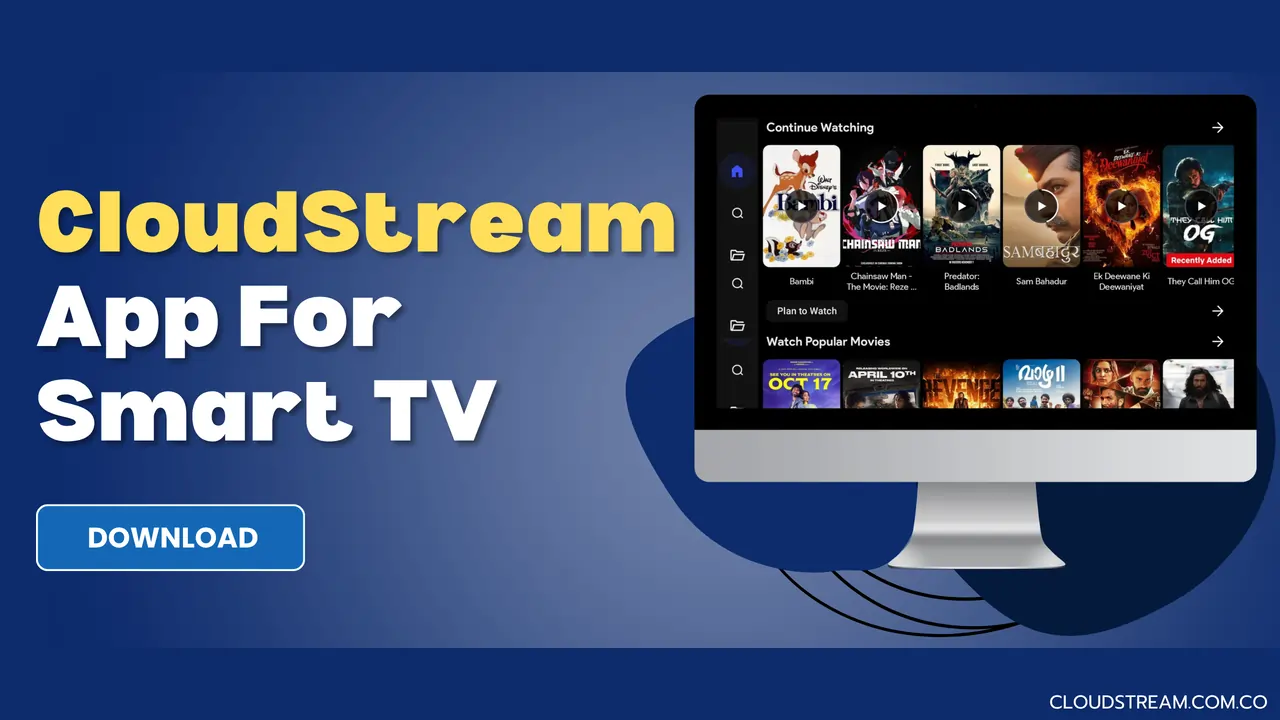
What is CloudStream For Smart TV?
CloudStream for Smart TV is a feature-rich online multimedia player tool on which users can extract movie content from the internet and watch it with the best possible viewing experience. CloudStream is compatible with a vast range of devices, such as Android TV, Fire TV Stick, Chromecast, and Roku devices. Installing it on a TV is a bit different from on Android phones, so we created this separate guide just for user to easily understand the process to download and run this app on their Smart TV.
How to Download and Install CloudStream For Smart TV?
Running CloudStream on Smart TV is quite simple, and it provides an incredible user interface and full-screen movie playback for an immersive viewing experience. Here is the straightforward installation guide to install this app carefully.
Step 1: Enable Unknown Sources
On the home screen of your TV, go to the Settings menu and look for the Security & Restrictions section. Find an option labelled “Unknown Sources” or “Install Unknown Apps” and then click on it to toggle it on.
Step 2: Download the APK file
Make the first movie on your smartphone, simply open a browser and download the latest version of CloudStream APK from our website (Cloudstream.com.co).
Step 3: Transfer the APK file to TV
Since you have the APK file on your phone, connect it to your TV via your charging cable, select the “File Transfer” option on your phone, and copy or move the CloudStream APK file from your phone to the TV’s internal storage.
Step 4: Install the APK file
After successfully transferring the CloudStream app to your TV, locate the APK file and click on it, then press the “Install” button to initiate the app installation process.
Step 5. Configure Extension:
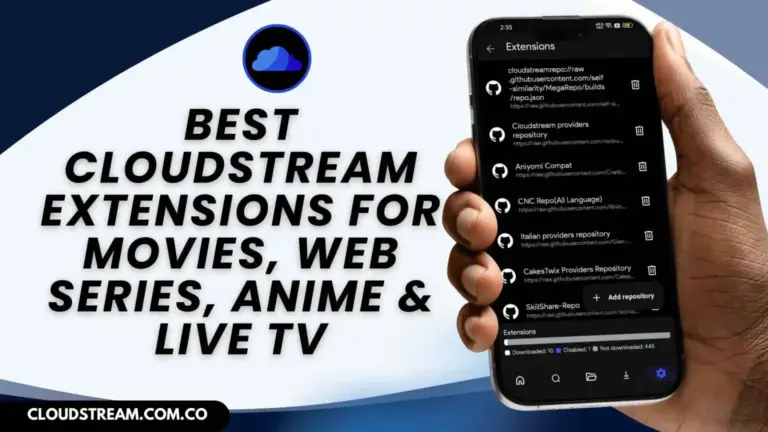
Launch CloudStream and select the app language; it will also be set as the default language for audio and subtitles. Choose the preferred media type and app layout to complete the initial setup. Now, open the Settings and go to the Extensions and tap on “Add Repositories”. Follow this link to open the CloudStream Repositories and Extensions page, then tap on the Download button next to the Mega Repositories, then click on the Add button to install the repositories to the CloudStream app.
Step 6. Final Setup:
Open the Settings and go to the Extensions, where you can find all the extensions you’ve now installed, so click on the Download button next to install to activate them. Go to the home feed, tap on the None button, and select sources to show the list of thousands of movies and series on the home feed.
Key Features
Fresh Content Addition
All the videos on CloudStream are extracted from third-party free streaming and torrent sources on the internet, which gives it an edge to be able to provide newly released regional and international movies in this app more quickly than it gets on paid OTT platforms.
No Annoying Ads
CloudStream is known for its clean and ad-free UI/UX that enables users to stream movies and series uninterrupted, so no annoying ads keep popping up on the screen, disturbing your viewing experience.
Offline Downloads
Movies and shows from CloudStream app are downloadable, which means users can save videos on their device’s local storage to get access to them later on anytime, even if the internet is down, not working, or the device is offline, you can play the downloaded video and continue watching your movie.
Quick Search
An advanced search functionality is provided that extracts content from all the installed Repositories, so sometimes you may find the same movies from several different servers and try to stream from all of them to find out which one is offering the best video quality and faster streaming experience.
Multiple Language Support
If you like watching foreign language content, such as K-Dramas or Anime episodes are usually available in their original audio, which many viewers across the world find difficult to understand. CloudStream provides on-screen subtitles with the customizable option to switch languages, and there are so many language choices.
Skip Intro
When watching web series, especially with K-dramas, videos play a similar, boring intro for about 2 minutes at the beginning of every episode, which many users find interruptive. Just toggle the skip intro/outro button, and the app will automatically skip the intro section for every episode. Thus, ensures you get a peaceful watching experience without distractions.
Conclusion
CloudStream is rich with a large database of entertainment content suitable for all ages and lets you dive into the magical realm of movies, series, and anime content from all genres to stream online without ad interruption. The app never misses a beat, transforming your viewing habit by offering regular additions of newly released content, so every time you open the app find something new and interesting to watch.
![CloudStream APK For PC Download for Windows/MAC [2025]](https://cloudstream.com.co/wp-content/uploads/2025/10/Cloudstream-APK-For-PC-Download-768x432.webp)